Quick reports now show why learning stalls, not just how much is done
Quick report analytics now show how long your learning takes, who is taking longest, and which step people get stuck on.
Open View learners on any Pathway, Event, Form or piece of content and click View analytics. The charts answer the questions you used to need a spreadsheet for.
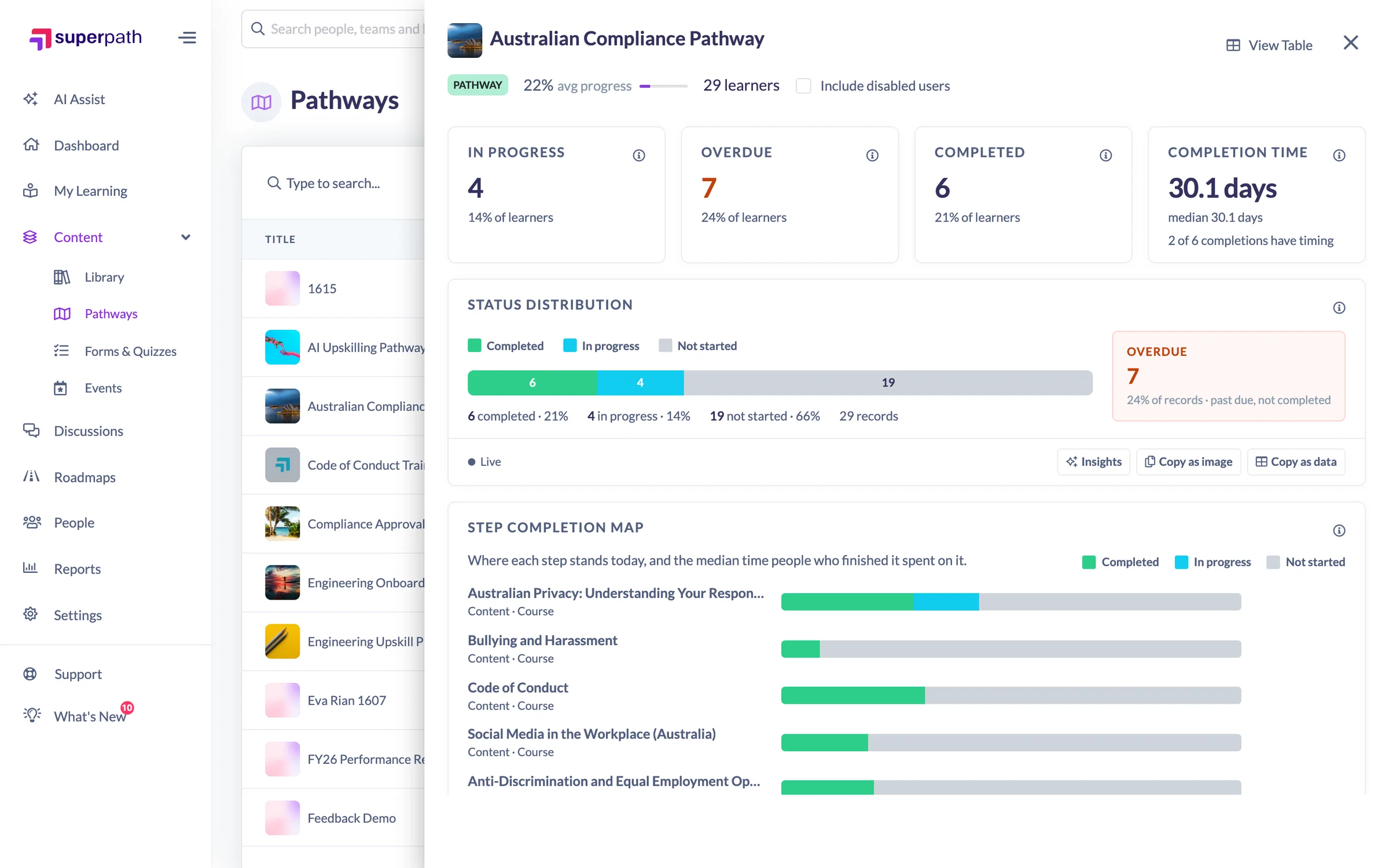
The problem we've solved
A completion percentage tells you how many people finished. It does not tell you why the rest have not.
When a compliance Pathway sits at 40 percent, the useful questions are harder. Is everyone stuck on the same module? Did a handful of people take three months while most finished in a week? Are you assigning faster than people can complete? Until now, answering them meant exporting the learner list and building the charts yourself.
What each chart tells you
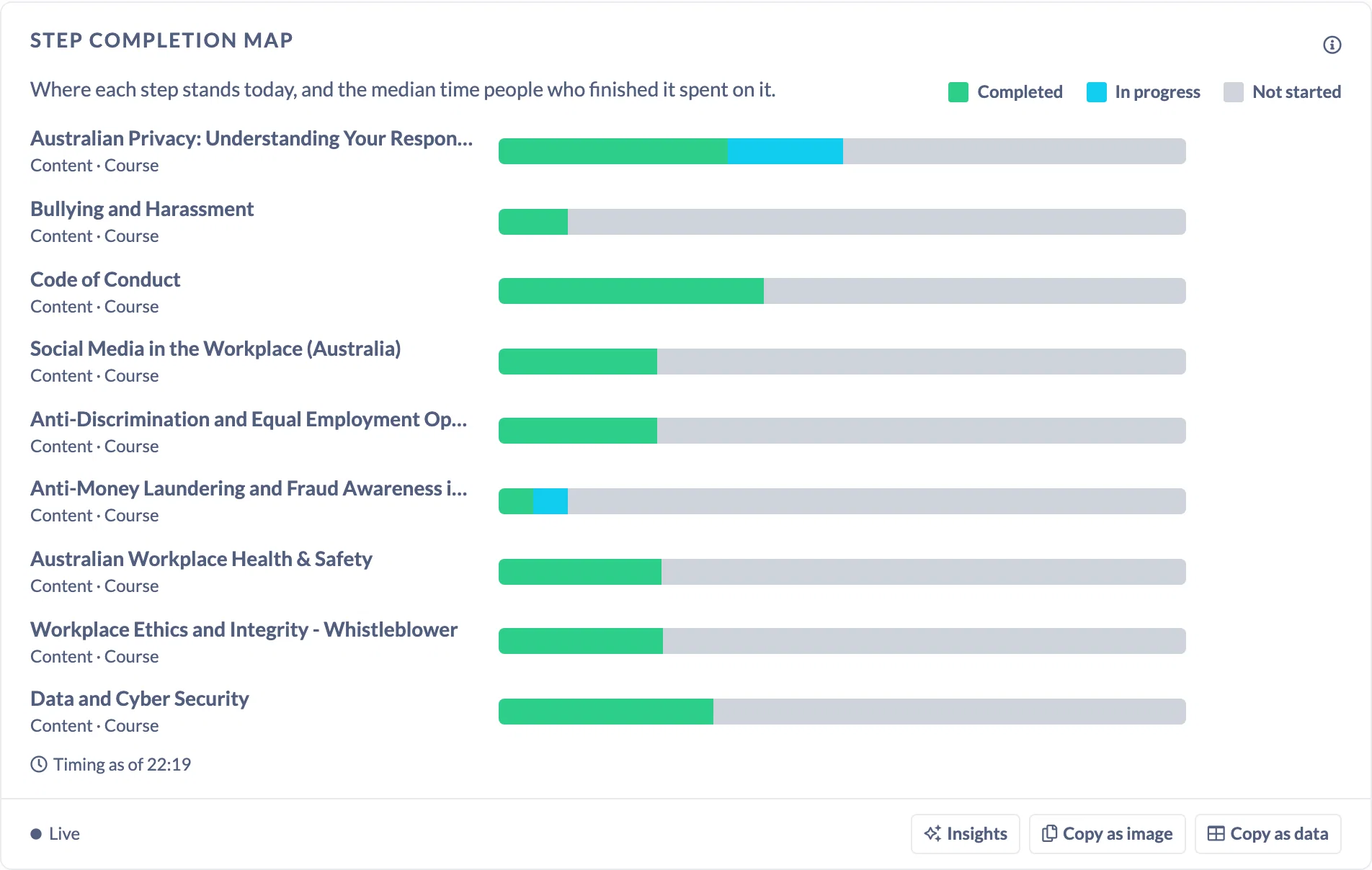
Step completion map. Every step in a Pathway in order, grouped by section, with a bar for completed, in progress and not started, and the median time people spend on it. Look for the step where the bars turn grey. That is your blocker, and a Drop-off marker points to it. A step with a much longer median than its neighbours is where people spend their time, and often the right place to split a module or add guidance.
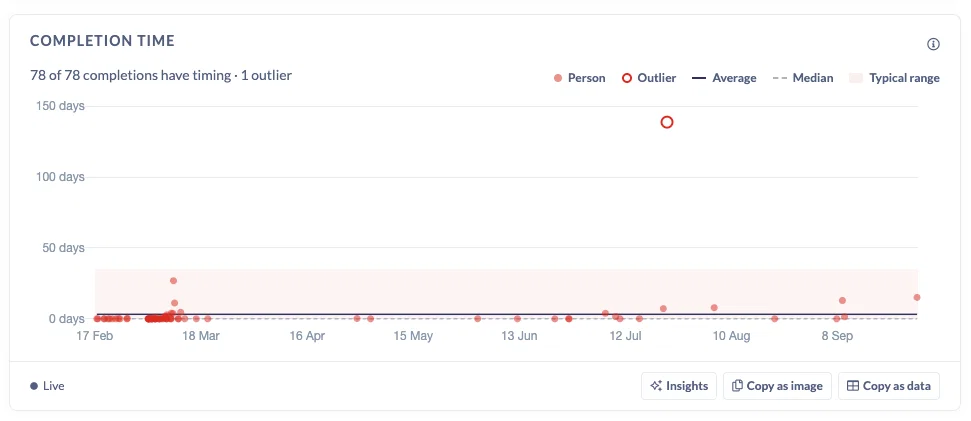
Completion time. One dot per person who finished, placed at the date they completed and how long they took. Average and median lines sit across it, with a shaded typical range. Anyone well outside that range is marked as an outlier. Hover over a dot to see who it is, so you can follow up with the people who struggled or check in with the ones who finished much faster than everyone else. The headline tile shows average and median together, so you can see when a few long completions are pulling the average up.
Status distribution. Completed, in progress and not started in a single bar that always adds up, with overdue in its own box beside it. Overdue matches the Overdue tab exactly, so the number you chase is the number you see.
Assigned vs Completed. Assignments and completions over the item's whole life. If assignments keep running ahead, your backlog is growing. If completions do not rise after a big rollout, that is your cue to look at overdue and the step map.
Where it earns its place
- Chasing a compliance deadline: check overdue, then switch to the table and send reminders.
- Fixing a Pathway people stall on: find the step where completion drops and how long people spend there.
- Coaching your team: managers see the same charts for the people who report to them.
- Reporting upwards: copy any chart as an image or as data, or ask Insights for a written summary.
Worth knowing
- Figures count records, so someone assigned the same item twice counts twice.
- Statuses are as they are right now. Recently assigned people naturally show as not started.
- The step completion map is for Pathways only. Events, Forms and content get every other chart.
- Quick reports on Roadmaps keep their current layout for now.
Full details, including how to read each chart, are in How to Use Quick Report Analytics.