Meet SuperPath Assist
The fastest way to get answers out of your platform
Some questions are too small to build a report for. How's login activity tracking this month? Has Adam finished his compliance pathway? How do I set up a dynamic team again? Each one is a five minute detour: open a report, set the filters, export it, or go digging through the Help Centre to remember where a setting lives.
SuperPath Assist takes those detours away. It's your own AI assistant inside SuperPath, and it answers two kinds of questions: insights about your people, and how-tos about the platform. You just ask, the way you'd ask a colleague.
This is the first of three Assist releases, and it's all part of our goal of becoming the easiest platform for admins to use. We want to take the management out of learning, and this is how we're going to do it.
Ask from anywhere, with one button

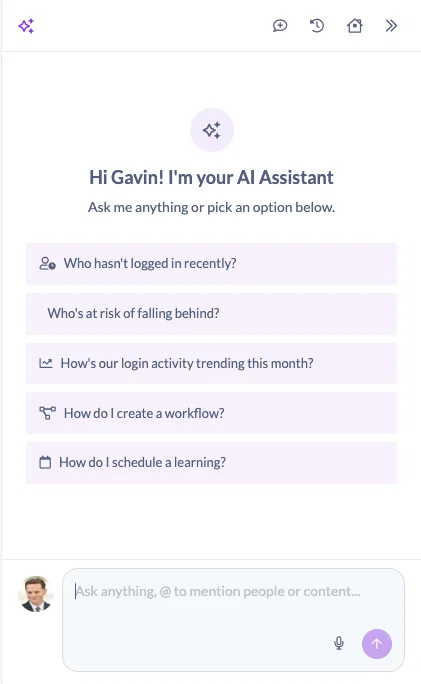
Assist lives behind the Ask AI button at the top of your account, so it's available on every screen. Click it and you'll get a short menu of context aware suggestions based on where you are, which is often faster than typing the question yourself.
That context awareness is the part people notice first. Open a learner's profile and Assist offers questions about that person. Head to your content and the suggestions shift to content questions. One click and you have your answer.
Insights, straight from your own account
Ask about your learners and Assist looks at the real data in your account, then gives you the number and the breakdown behind it.
- "How's our login activity trending this month?"
- "Who's overdue on compliance training?"
- "What's onboarding completion for the Sydney team this quarter?"
- "How many people still haven't started the new starter pathway?"
- "Who's falling behind?"
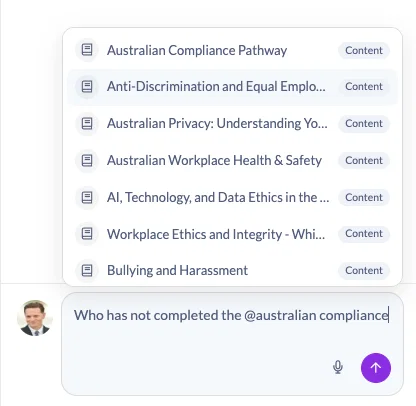
You can also point a question at something specific. Type @ and start typing to pull in a particular pathway, course or person, then ask your question about it. Asking "how many people have completed @Australian Compliance Pathway" is quicker than filtering a report to find out.
Keep the conversation going
Assist remembers what you just asked, so you can follow up naturally instead of starting over. Ask how many learnings someone has completed this month, then simply ask "and how many last month?" and it knows who you mean.
Take the answer with you
Answers are built to leave the app with you, because most of the time someone else asked you the question in the first place.
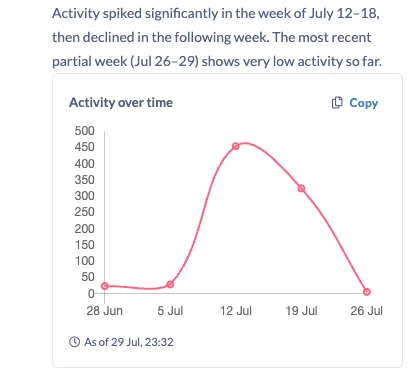
- Ask for it as a graph and Assist visualises it for you
- Copy it straight out and paste it into an email, a board pack or a slide
- Want the underlying detail? Ask for it as a CSV
How-tos, answered properly
Assist also knows the platform itself. Ask how something works and you get a real answer rather than a page of search results.
- "How do I assign a course?"
- "How do I set up a dynamic team?"
- "How do I connect foundU?"
- "What does approval required actually do?"
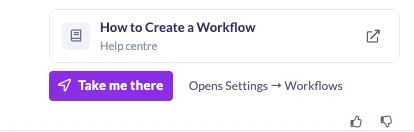
Every answer comes with the Help Centre article it drew from, so you can read further if you want to. And when there's a screen involved, Assist offers to take you straight there, so no hunting through menus to find it.
This is where it gets genuinely useful for newer admins. Instead of learning the navigation before you can get anything done, you describe what you're trying to achieve and Assist points you at it.
Your Assist Homepage
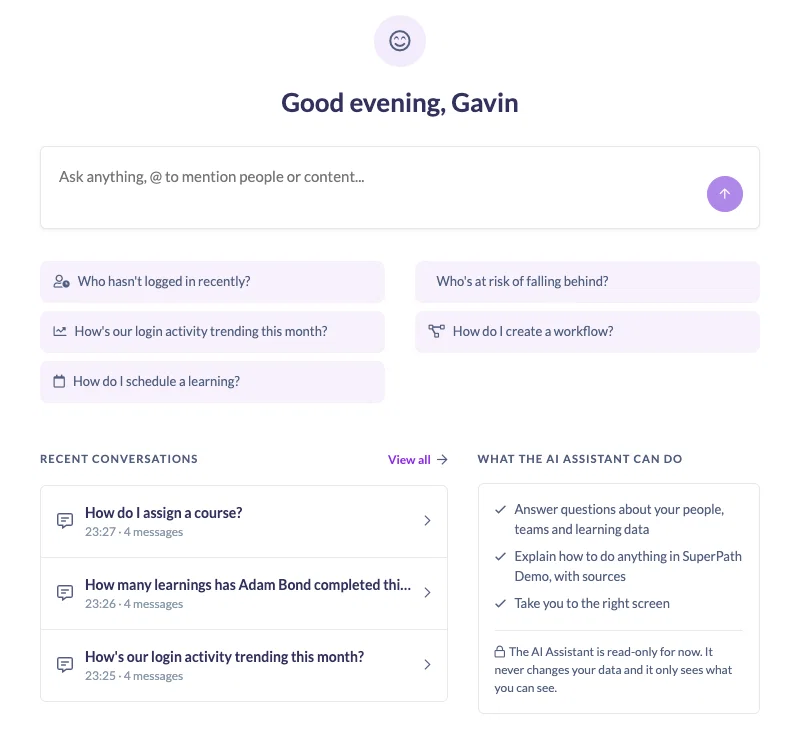
Assist has its own home inside SuperPath, with your recent conversations listed so you can jump back into anything you asked earlier. Handy when you pulled a number last week and you'd rather pick up that thread than reconstruct the question. Starting fresh is one click away too.
Built to be trusted
Assist doesn't guess. Every figure comes from a real lookup in your own account, so it can't invent a number. And when it genuinely doesn't know something, it says so and puts you through to a human, rather than confidently describing a menu path that doesn't exist.
Safe by design
Assist only reads. It can't change, delete or assign anything.
It also respects exactly who you are. Managers see their own team, admins see the account, and nobody sees anything they couldn't already see. The same permissions you have today, with no exceptions.
You decide who gets it
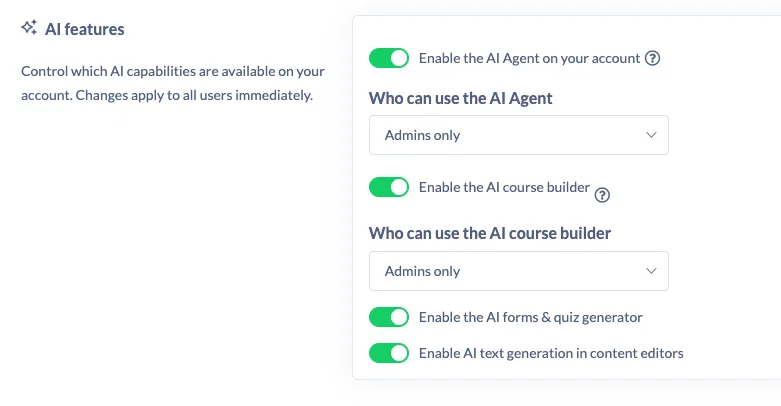
We've expanded the AI settings so you're in control. Head to Settings, then Features, and you'll find a new AI block.
- Turn the Assist agent on or off for your account
- Choose who can use it (it's set to admins only by default, and you can open it up to managers)
- Control SuperPath's other AI capability centrally, including the AI course builder, AI forms and quiz generator, and text generation
That last point closes a gap a few of you have raised. Previously the AI course builder, forms and quiz generator and text generation were always on. Now you can restrict them to admins, or extend them to managers, whichever suits your organisation.
What this changes day to day
- For experienced admins, Assist replaces a lot of small reporting jobs. The ad hoc questions that arrive by email or in a meeting, the ones you'd normally answer by building a report you'll never use again, now take a sentence.
- For newer admins, it flattens the learning curve. You don't need to know where everything lives to be effective, because you can ask.
- And for everyone, it means fewer tabs. Assist is available from wherever you already are, so answering a question doesn't mean abandoning what you were doing.
This is just the start
Insights and knowledge are the first of three Assist releases. Next up is the ability to perform actions, so Assist won't just tell you how to create a workflow or assign learning to a team, it'll do it for you.
SuperPath Assist is available now. Have a play with it, ask it something you'd normally have built a report for, and tell us what you think. Your feedback shapes what lands in the next release.