Manage pathway steps right from your quick views
Your quick view reports already give you the top-line on any pathway at a glance: who's started, who's in progress, and who's crossed the finish line. But the moment you needed to check which steps someone had actually done, or nudge a due date along, you had to jump right into the pathway to do it.
Not any more. You can now expand any learner straight from the pathway quick view report to see their steps, and take action on those steps then and there.
Expand a learner to see their steps
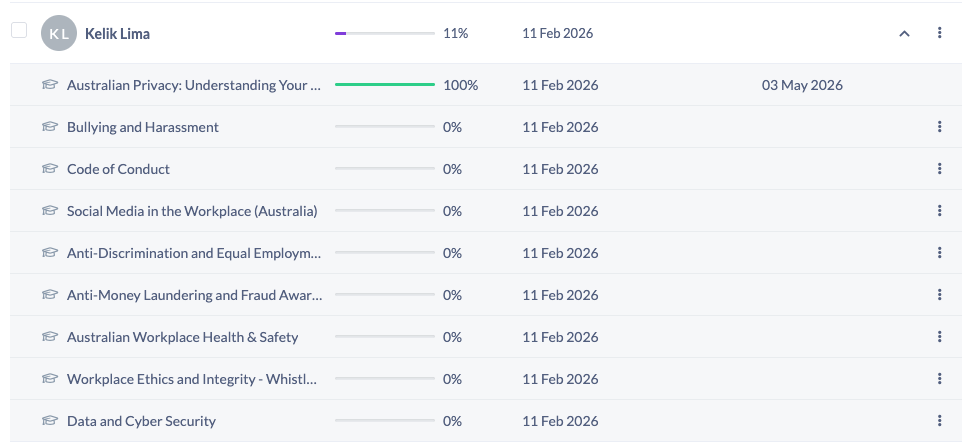
Open the quick view report on any pathway and you'll get the same progress overview you know. Now, click the arrow next to a learner and their full list of pathway steps loads right there in the report. You can see exactly what they've completed and what's still outstanding, no need to open the pathway itself.
It's especially handy when someone's sitting at, say, 26% and you want to know what's actually behind that number before you follow up.
Take action on the spot
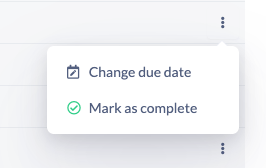
Expanding a learner isn't just about visibility. From the step menu you can do the same admin actions you'd do inside the pathway, including changing a step's due date or marking a step as complete. Spot a learner who needs a little more time or has finished something offline, and sort it without breaking your flow.
The same view from a person's account
This works in the people view too. When you're in a learner's account looking at their learnings, you can expand a completed pathway to see which steps they finished and when. So whether you're working across a whole pathway or zeroing in on one person, you've got the full picture in one place.
Where it fits in your day
This is all about cutting the clicks out of pathway admin. Reviewing progress, adjusting due dates, and tidying up completions used to mean bouncing in and out of pathways.
Now it happens right where you're already looking, so checking in on your learners is faster and far less fiddly.
Next time you open a pathway quick view report, click that arrow and dive in. 🙌