Bring your learning history with you
Migrating to a new LMS shouldn't mean starting your reporting from scratch. If your people have spent years completing compliance modules, inductions and certifications in Go1, Cornerstone or another platform, that record matters. It's the difference between proving compliance on day one and telling your auditor to check the old system.
Until now, bringing that historic completion data into SuperPath meant asking our support team to handle it for you. That worked, but it added a step and a wait. Historic Imports puts the capability directly in your hands, so you can bring your learning history across yourself, course by course, in a few minutes.
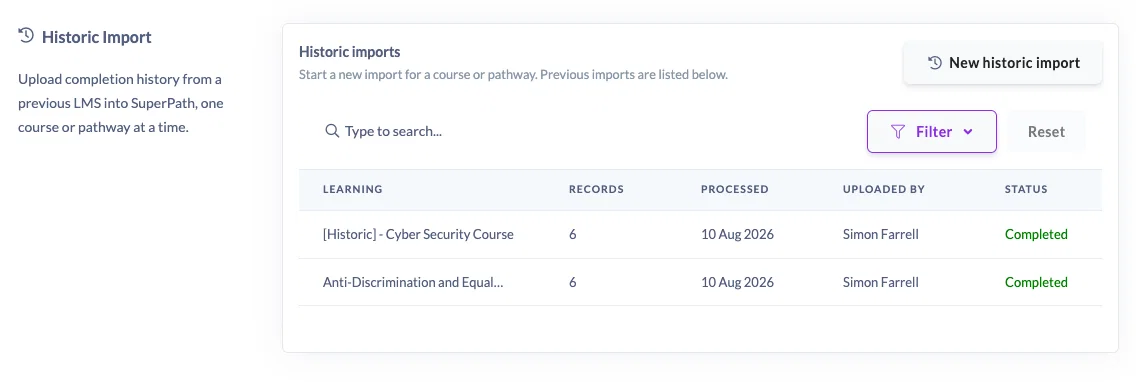
What you can do with Historic Imports
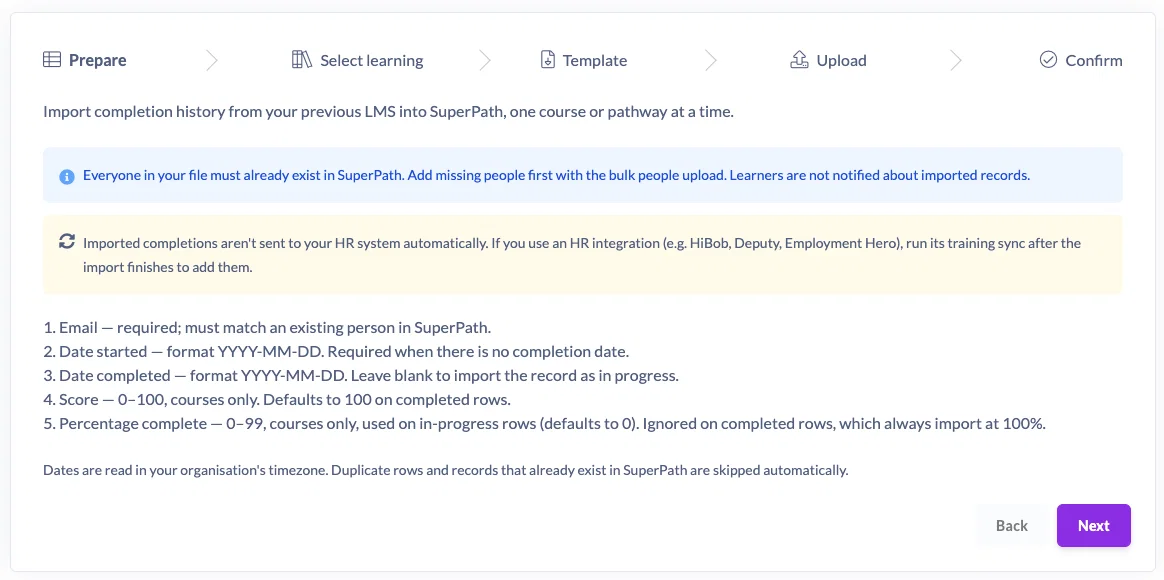
Import completions with the detail you already have
You only need five fields from your old platform: email address, date started, date completed, score and percentage complete. Score and percentage are optional, which is handy if you're migrating SCORM courses where those values weren't always captured.
The email address is the key that ties each record to the right person in SuperPath, so it's worth a quick check before you upload.
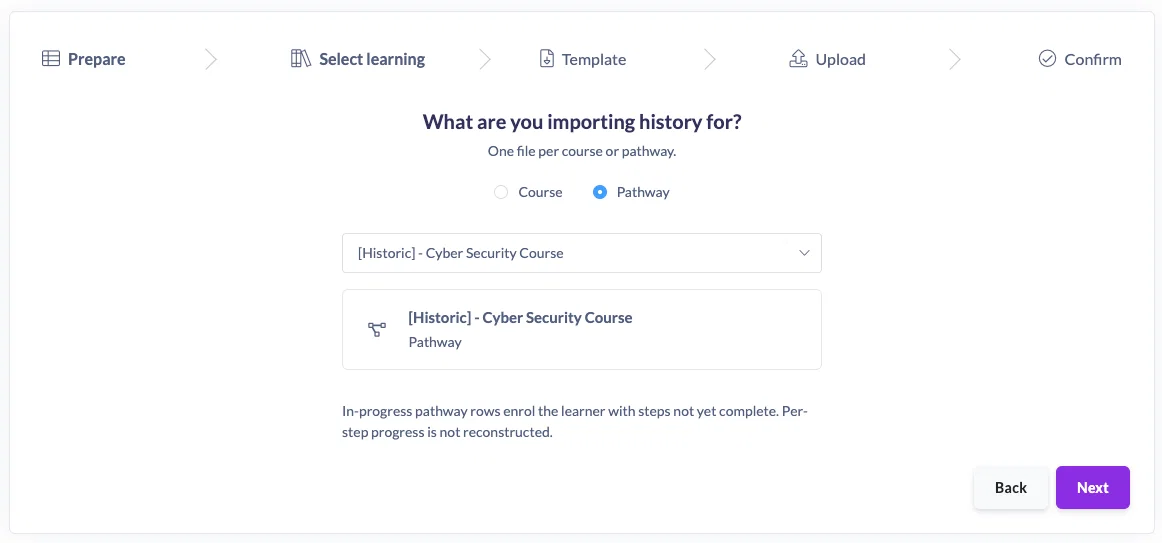
Attribute records to a course or pathway
Imports run one course at a time, which keeps each batch clean and easy to check. If the original course doesn't exist in SuperPath (and often it won't), the simplest approach is to create a placeholder to hold the history. A shell course, a quick build with the AI course builder, or a pathway all work equally well. For example, a "Historic Cybersecurity Training" course gives you somewhere to land three years of completions without rebuilding the content itself.
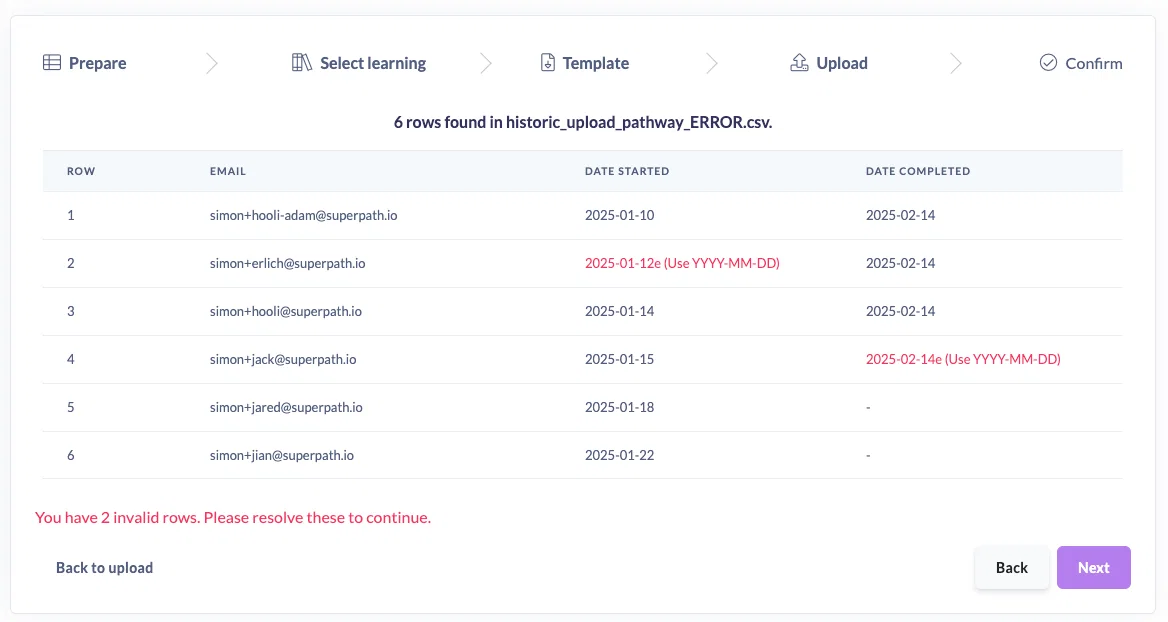
Catch problems before they land
Download the template if you need it, upload your file, and SuperPath validates every row before anything is written. Invalid email addresses, malformed dates and incorrect scores or percentages are all flagged with the row they belong to, so you can fix the file and re-upload rather than hunting through your data afterwards.
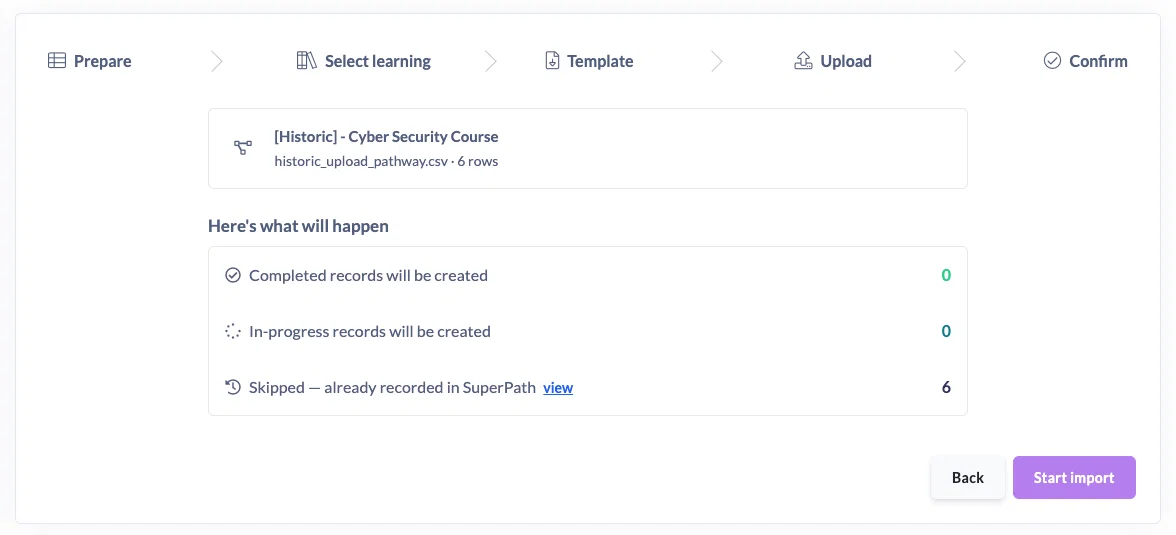
You'll then see a plain summary of what's about to happen, for example four completed records and two in progress, before you commit. Nothing is imported until you hit Start Import.
Keep your HR system in step
If you've connected an HR platform such as HiBob or foundU, historic imports don't automatically sync back to it. That's deliberate, since most teams don't want a migration flooding their HR records. When you do want that history reflected there, you can push it across yourself with a single action.
What this changes day to day
The obvious win is migration: you can move to SuperPath without leaving your compliance history behind, and without waiting on a support ticket to do it. But it's just as useful afterwards. Learning that happened outside the platform, an external certification, a conference workshop, a course run by a supplier, can be recorded against a placeholder course so your reports tell the whole story rather than only the part that happened in SuperPath.
Once an import finishes, your quick view reports update immediately. Open the course or pathway, click through to the report, and the imported records sit alongside everything else, completions and in-progress learning included.
Give it a go
Head to Settings, then Data Management, and look for Historic Import. If you're mid-migration and moving a large volume of records, reach out to the team and we'll help you plan the best way to split it up.