Access Expiry
Give platform access an automatic end date
Keeping track of who should still have access can be a constant background task. Contractors wrap up, temporary staff move on, and someone has to remember to switch off the right people at the right time. Miss it, and accounts stay open longer than they should.
Access Expiry takes that job off your plate. Set the date a user's access should end, and SuperPath handles the rest.
What's new
You can now set an access expiry date for any user. When that date arrives, their access ends and their account is automatically disabled. No reminders to chase, no manual clean-up.
It's especially handy if you:
- Manage your users manually and want access tied to a contract end date
- Connect an HR system but bring in contractors who sit outside it
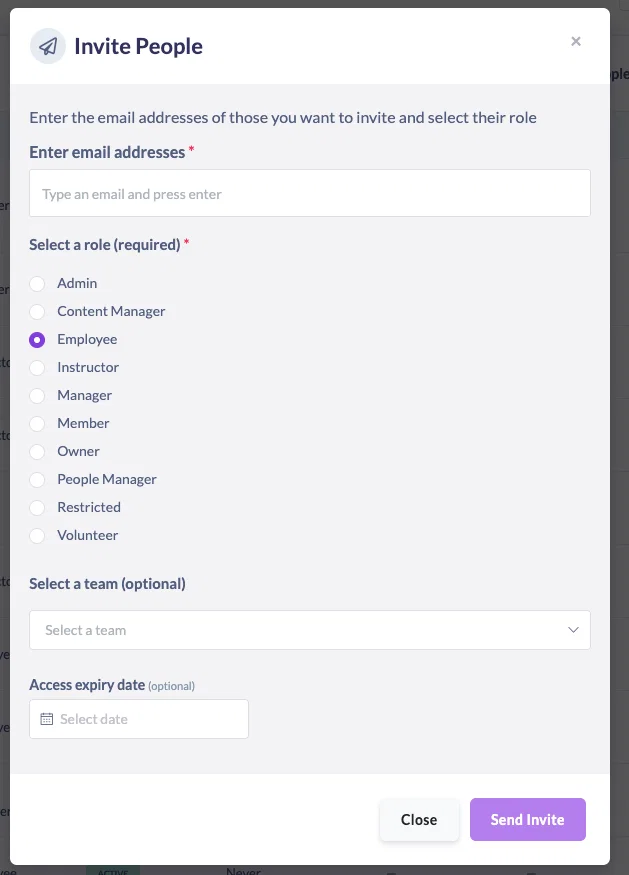
Set an expiry date wherever you add people
You can add an access expiry date in three places:
- When you invite someone to the platform
- When you manually add a user
- When you edit an existing person's profile
So whether you're onboarding a new contractor or updating someone already on the platform, the option is right there.
Access ends automatically
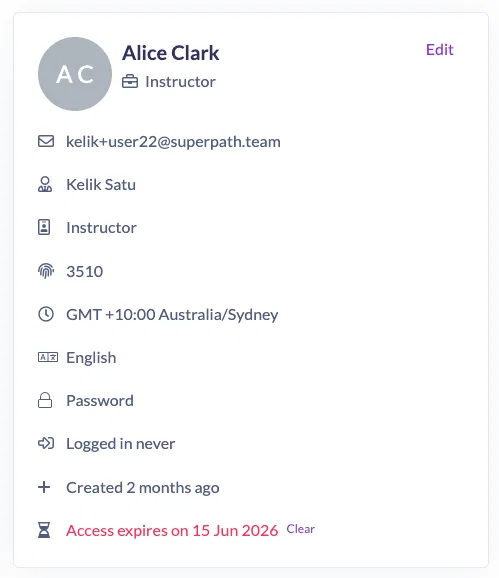
When a user's expiry date arrives, their account is disabled automatically. You'll also receive a daily digest of everyone whose access has expired, so you always know who's been switched off and can review anything that needs a second look.
Reactivate in a couple of clicks
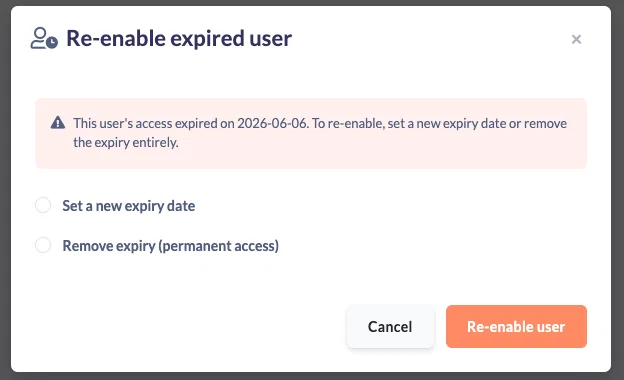
Need to bring someone back? Click reactivate on the person's profile. You can set a new expiry date, or remove the expiry entirely to give them access indefinitely.
Find and filter by expiry
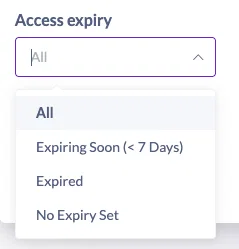
The people list now shows each user's access expiry at a glance. A new filter lets you view people who are expiring soon, who have already expired, or who have no expiry set, so staying on top of access takes seconds.
Give it a go
Head to Settings, then Features, and scroll to the People section to switch on access expiry dates for your account. From there, you can start setting expiry dates straight away. Enjoy!