A second sign-in method for your company staff
Your office staff can sign in with Microsoft, Google or SSO while your contractors keep using a magic link, all from the same HRIS sync.
Most organisations have a mixed workforce. Office staff have a company email address and can use your corporate identity provider. Contractors, casuals and other contingent workers sit in the same HRIS, but they use personal email addresses, so corporate sign-in is not available to them.
Until now your HRIS integration created everyone with a single sign-in method, which forced a compromise. Choosing SSO locked your contractors out. Choosing a password or a magic link meant your office staff lost the SSO experience.
Now you can set two. Nominate your company email domain, choose a sign-in method for the people who match it, and everyone else keeps the method you already use.
What you get
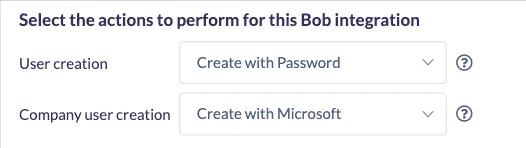
- A second dropdown. Company user creation sits directly under your existing User creation setting and offers the same methods: Password, Magic Link, Google, Microsoft and SAML.
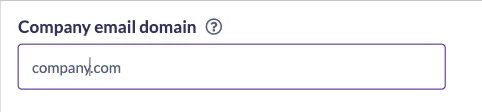
- A company email domain field. Enter one domain or several, separated by commas, for example
company.com, company.com.au.
- All six HRIS integrations. foundU, BambooHR, Employment Hero, Deputy, HiBob and Worknice.
How the matching works
SuperPath compares the part of each person's email address after the @ symbol with the domains you entered, and the match is exact. jane@company.com matches company.com. bob@gmail.com does not. Neither does sam@au.company.com, because subdomains are deliberately never matched. A contractor on a lookalike address should not quietly land inside your company sign-in method. If your organisation uses several domains, list each one.
What to know before you turn it on
- It applies to new people only. Anyone already in SuperPath keeps the sign-in method they have, now and on every future sync. Changing this setting does not migrate anybody.
- A domain match takes priority over everything else. If your User creation setting is Manual or Invite Users, people who match your company domain are now created directly instead. That is the point of the feature, but it does mean your integration can create more people than it did before, so check your licence count if you are close to your limit.
- Choosing SAML needs Custom SSO configured first. Without it, matching people cannot be created and each attempt is recorded in your integration logs.
- On Employment Hero, check your Sync Personal Email setting. That setting brings across each employee's personal email address instead of their company one. The domain match uses whichever address SuperPath receives, so while it is on your company staff will not match your company domain and everyone keeps the default method.
- Nothing changes until you choose it. The new dropdown starts on Same as user creation, and every existing integration behaves exactly as it did before.
Where to find it
Settings → Integrations, then open your HRIS integration. Full detail, including troubleshooting, is in How to Set a Second Authentication Type for Company Staff.